
Options
Shortcode settings in the block editor
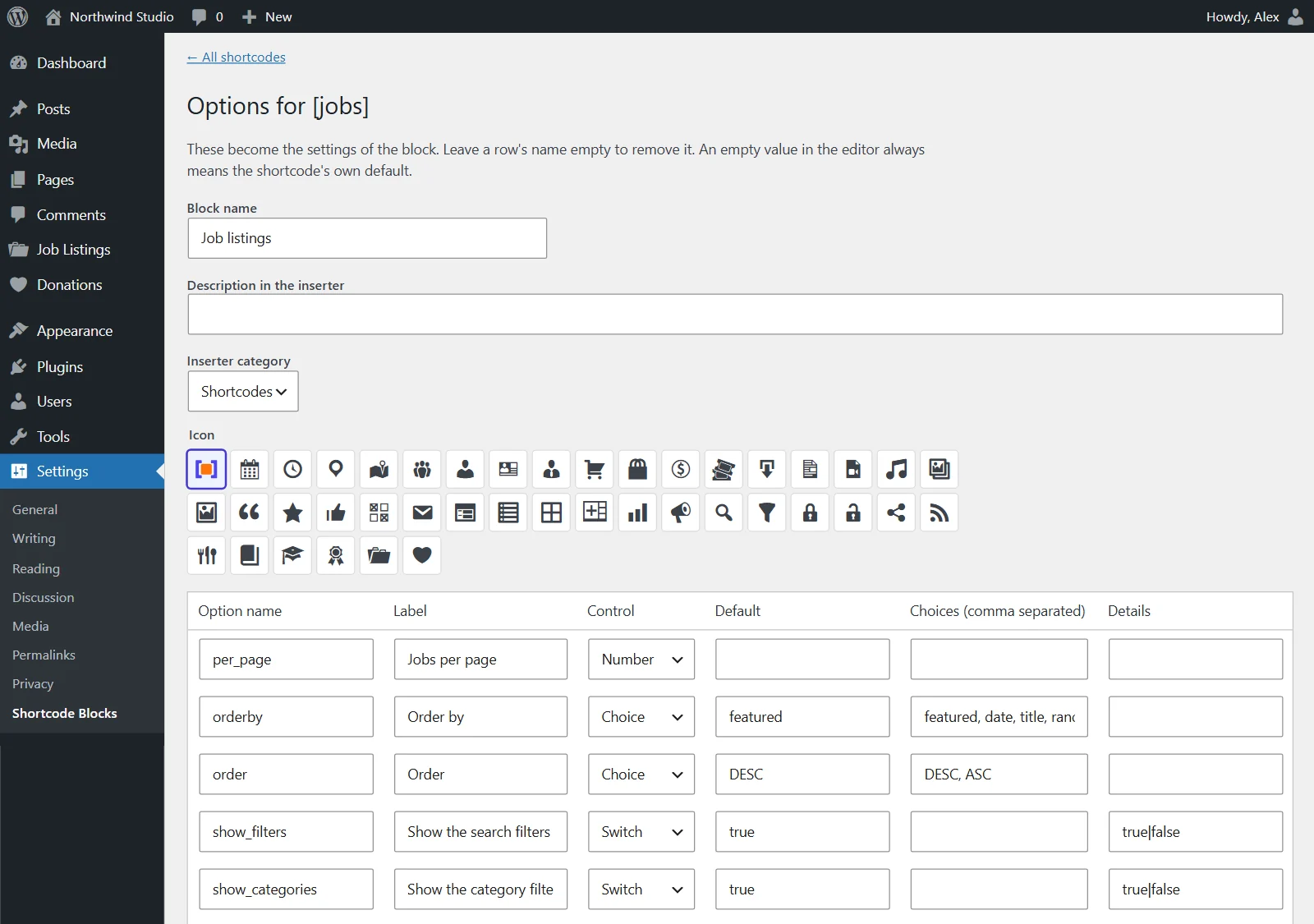
Options are read from each shortcode's own code, or by running it once. Rename them or add your own.
TextNumberChoiceSwitchPost pickerColour
Convert shortcodes to Gutenberg blocks without writing code: every shortcode on your site gets its own block, a settings form and a live preview.
WordPress 6.5+ · PHP 7.4+
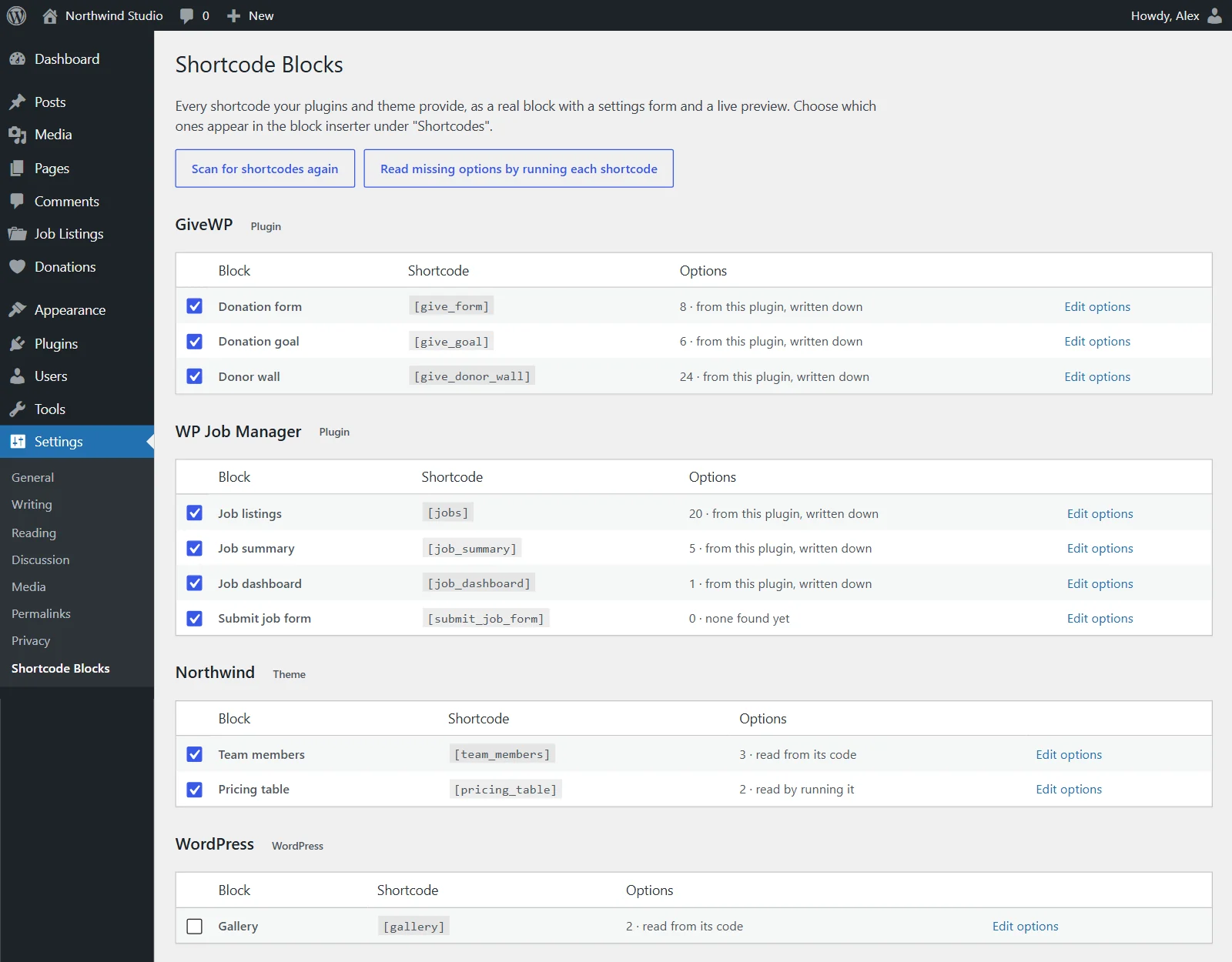
Options are read from each shortcode's own code, or by running it once. Rename them or add your own.
Each block also saves the plain shortcode, so the page looks the same without the plugin.
<!-- What the block saves in your post -->
<!-- wp:jzscb/jobs {"sc_per_page":"6","sc_show_filters":"false"} -->
[jobs per_page="6" show_filters="false"]
<!-- /wp:jzscb/jobs -->

// Plugin switched off? WordPress still runs
// the plain shortcode. The page looks the same.Rendered by your own site, with your theme's styles and scripts.
Paste a shortcode and it becomes its block. Shortcode blocks transform too.
Turn the shortcodes already in your posts into blocks. Pro.
WP Job Manager, GiveWP, Easy Digital Downloads and WP Recipe Maker. Pro.
An icon, a description and an inserter category per block. Pro.
No external requests, no tracking, no tables.
Install the plugin. Every shortcode your plugins and theme provide appears in the inserter under Shortcodes, with its own settings and a live preview.
From the shortcode's own code, read without running anything. Shortcodes that build their options at run time can be run once to record them, and you can add options by hand.
Each shortcode runs in its own request, only when an administrator clicks the button, and its output is thrown away. One that fails is simply marked as not readable.
Yes. Paste a shortcode and it becomes its block, and a Shortcode block can be transformed into the matching block and back. Pro converts the shortcodes already in your posts in bulk.
Every block saved the plain shortcode in the post, so WordPress keeps running it and the page looks the same.
Yes. Use the "Content between the tags" field.
Activating a plugin or switching theme triggers a new scan the next time an administrator opens the dashboard. You can also click "Scan for shortcodes again".